






- Mekari Sign, an Intelligent Contract Management Software (ICMS), lets businesses prepare and send documents for signing through a dedicated Singpass workflow.
- Document creators can select Local > SingPass, add recipients, and assign signature fields before sending a document.
- Recipients authenticate through the Singpass app, obtain a signing certificate, and complete the document signature by scanning two barcodes during the process.
- Businesses can also use Singpass and WhatsApp signing to deliver signing requests through WhatsApp and monitor their progress.
Businesses in Singapore can use Singpass to verify their identity when signing electronic documents. With Mekari Sign Singapore, document creators can prepare signing requests in one platform, while recipients complete the signing process through their Singpass accounts.
The process covers two stages. The sender uploads the document, selects the Singpass compliance option, adds recipients, and places the required signature fields. The recipient then reviews the document and completes the authentication and signing steps through the Singpass app.
This guide walks you through both stages, from uploading a document to viewing the signed copy. It also explains how Mekari Sign’s WhatsApp signing option can make it easier to reach recipients.
What do you need before signing with Singpass?
Before starting, prepare the document and recipient details. The sender and recipient use different parts of the workflow, so check the requirements for each role.
For the sender
- Access to a Mekari Sign account.
- The final document to upload and send.
- The name and email address of each person who needs to sign or receive a copy.
- Clear instructions on which recipients need to sign and which only need a copy.
For the recipient
- A Singpass account.
- The Singpass app installed on a smartphone.
- Access to the signing request.
The Singpass app is used to scan the barcodes and approve the signing request. Keep your smartphone nearby until the document has been successfully signed.
How to upload and send a document with Singpass in Mekari Sign
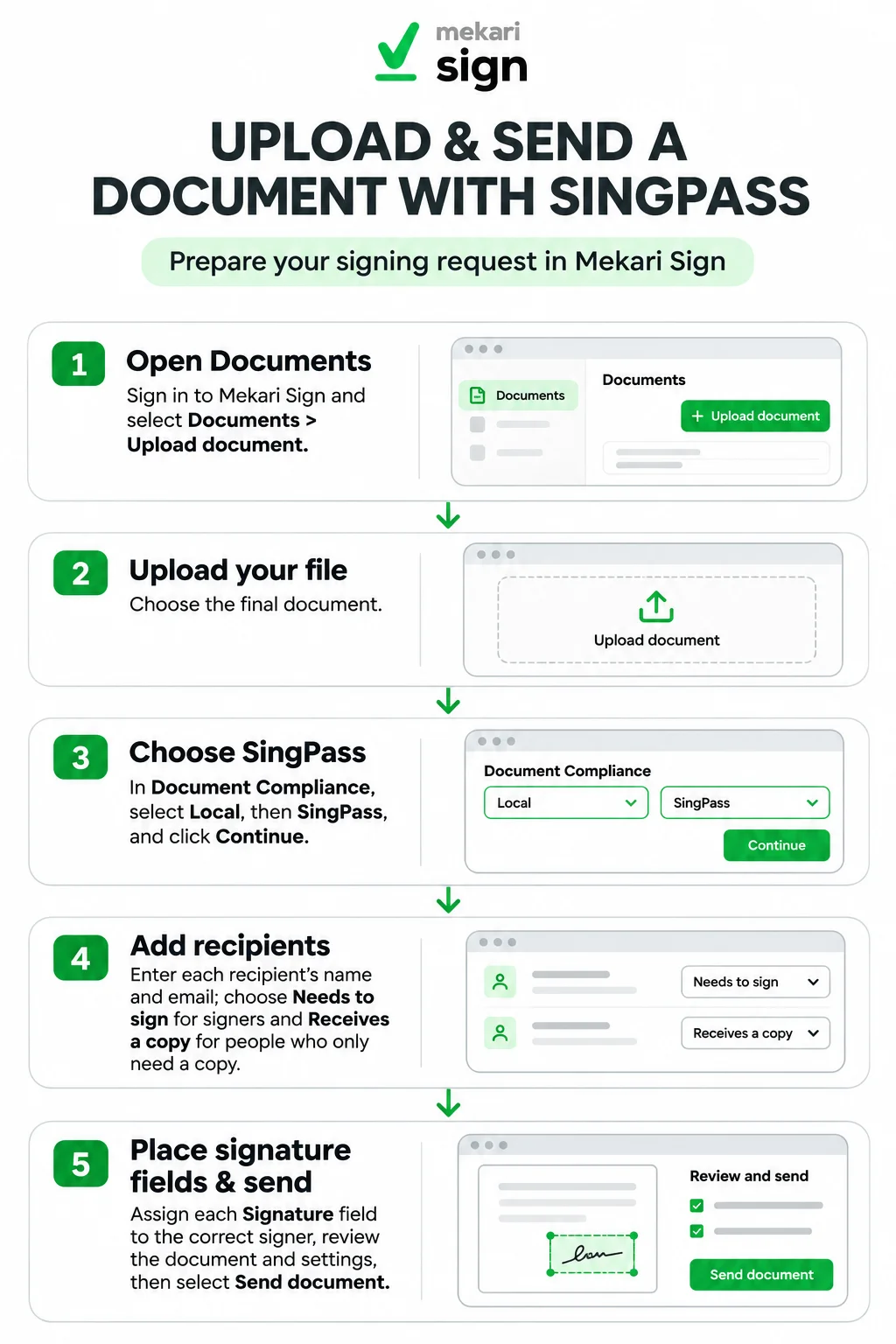
The sender prepares the signing request from the Documents menu. Follow these steps to upload the file, select Singpass, and assign the people involved.
- Open the Documents menu. Sign in to Mekari Sign and go to Documents. Click Upload document to start a new signing request.
- Upload the document. Select the file you want to send. Check that you have the correct version before proceeding, especially when the document contains agreed terms, payment details, or other information that recipients need to review.
- Select SingPass under Document Compliance. In the Document Compliance section, select Local. Under the Country section, choose SingPass, then click Continue.
- Add the recipients. Enter the name and email address of each person who will receive the document. Add all required signers before moving to the next step.
- Assign each recipient’s role. Select Needs to sign for recipients who must provide a signature. Choose Receives a copy for those who only need a copy of the document. Check the assignments carefully.
- Place the signature field. Select the recipient who will sign, choose Signature, and place the field in the appropriate position on the document. Make sure each signature field is assigned to the right person.
- Review the document name. Click Continue. You can rename the document on the next page if needed. Click Continue again to proceed to the review stage.
- Review and send the document. Check the recipients and signing settings on the Review and send page. When everything is correct, click Send document.
After sending, the document appears in the Mekari Sign document list with SingPass-related information. The recipient can then open the request and complete the signing process.
How to sign a document with Singpass in Mekari Sign
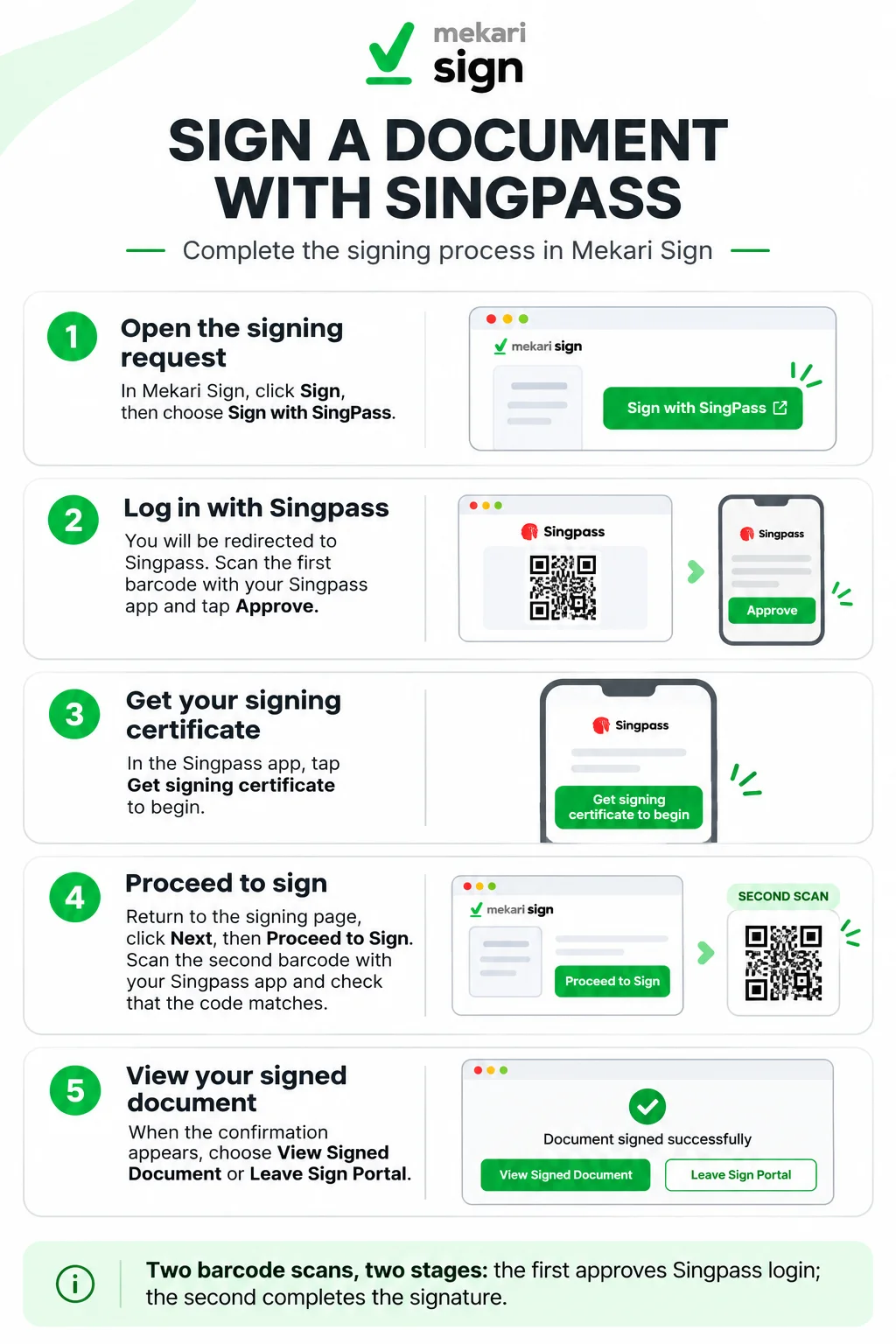
Once the sender has issued the document, the recipient can complete the signature. The process moves between the Mekari Sign signing page and the Singpass app.
- Open the document and select Sign. Access the document signing request and click Sign to open the signing page.
- Choose Sign with SingPass. Click Sign with SingPass. You will be redirected to the Singpass Log in with SingPass page.
- Scan the first barcode. Open the Singpass app on your smartphone and scan the barcode displayed on the page.
- Approve the login request. Review the request in your Singpass app. Check that the account shown belongs to you, then tap Approve to continue.
- Obtain your signing certificate. In the Singpass app, select Get signing certificate to begin. Follow the prompt to prepare the certificate required for digital signing. You can learn more about the role of a certificate authority in our related guide.
- Review the document and proceed to sign. Return to the signing page and click Next. Review the document, then select Proceed to Sign.
- Scan the second barcode. A new barcode will appear. Scan it with your Singpass app to complete the signing process. Check that the code displayed on the website matches the one shown in the app before proceeding.
- View the signed document. Once the process is successful, a confirmation page will appear. Select View Signed Document to open the completed file, or choose Leave Sign Portal to return to Mekari Sign.
The two barcode scans serve different stages of the process. The first supports Singpass login and approval. The second completes the document signature. Keep the app open and follow the prompts until the confirmation page appears.
Singpass signing uses a digital signature process supported by a signing certificate. For a broader explanation of what a digital signature is, and how electronic and digital signatures differ, see our related guides.
How Mekari Sign helps businesses manage Singpass signing
Preparing a document for signature involves more than placing a signature field. Teams also need to assign the right recipients, send requests, and keep track of agreements after they have been signed.
Mekari Sign brings these activities into a single document workflow. The sender prepares the document and signing request, while recipients complete their signatures through Singpass. Teams can then use the platform’s document and contract management capabilities to manage their agreements.
Businesses that handle recurring agreements can explore Mekari Sign’s contract management software. For guidance on organising agreements across their lifecycle, read our contract management guide.
Can you send Singpass signing requests through WhatsApp?
Yes. Mekari Sign also supports a Singpass and WhatsApp signing workflow for businesses that prefer to send signing links through WhatsApp.
WhatsApp serves as the delivery channel, while Singpass handles the recipient’s identity verification. The recipient opens the signing link in a browser and follows the Singpass authentication and signing steps.
For the sender, the feature includes delivery monitoring, read receipts, and scheduled reminders. Mekari Sign also records signing activity in an audit trail, giving teams a way to check the progress of their signing requests.
See how Singpass and WhatsApp signing in Mekari Sign works and how it can fit your document workflow.